How to Approve Your Quote, Pay the Reservation Amount & Reserve Your Appointment
Use this guide after reviewing preliminary pricing for chandelier installation, removal, cleaning, repair, relocation, or related fixture service. It walks you through the complete process from receiving your formal estimate through accepting it, signing it, making the required reservation payment, and selecting an available appointment.
Important: Pricing shown before your formal written estimate is preliminary. Your project scope, final quoted price, required reservation payment, and service terms are established by the written estimate or invoice sent to you. Approval of a quote alone does not reserve a service date.
1. Preliminary Pricing
2. Review & Accept
3. Sign Estimate
4. Make Reservation Payment
5. Reserve Appointment
1
Start with preliminary pricing and project review
Our online pricing tools and initial communications help establish a preliminary price range. After your fixture, ceiling height, access conditions, photos, and requested services are reviewed, we prepare the formal written estimate that controls the project scope and price.
Preliminary pricing is for planning and evaluation.
The written estimate identifies the services actually included in your project.
If your project changes, request a revision before accepting the estimate.
2
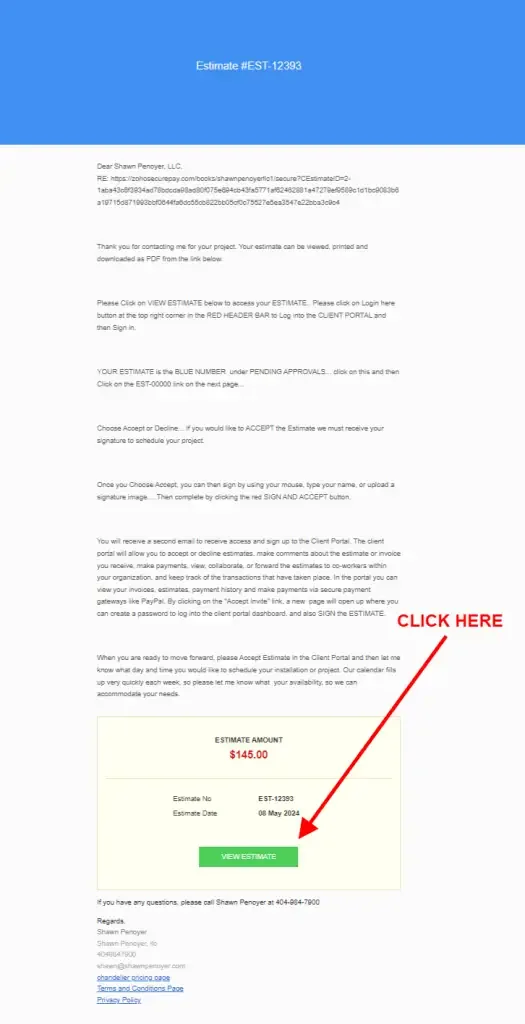
Open the estimate email and select “View Estimate”
When your formal estimate is ready, you will receive an email containing a link to the online estimate. Scroll through the message and select the green View Estimate button.
The estimate number appears in the email and online estimate.
Use the link in the email to open the secure customer estimate page.
If you cannot locate the email, contact us before requesting another quote.
Open the estimate email and select View Estimate.
3
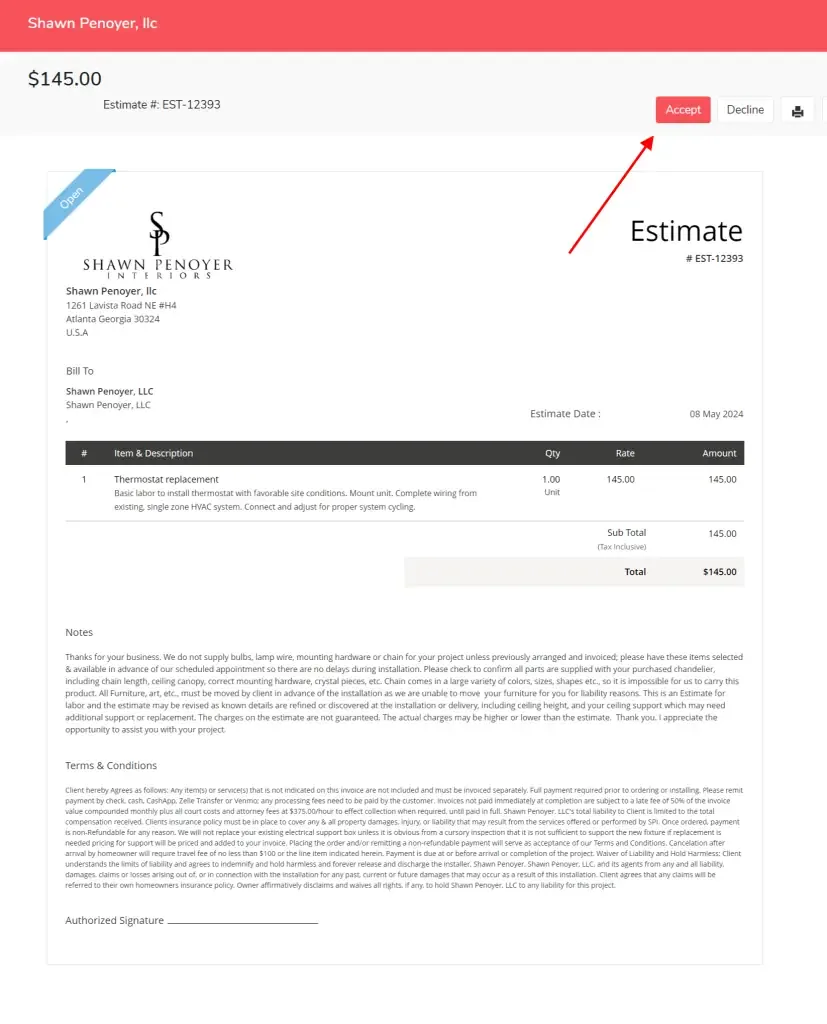
Review the estimate carefully and click “Accept”
Review the itemized services, project notes, quoted amount, payment requirements, and terms. When everything is correct and you are ready to proceed, click the red Accept button near the top of the estimate.
Confirm that every service you expect is specifically listed.
Review the quoted total and any reservation-payment requirement.
Contact us for a revision before accepting if the scope needs to change.
Review the estimate and click Accept when the scope and pricing are correct.
4
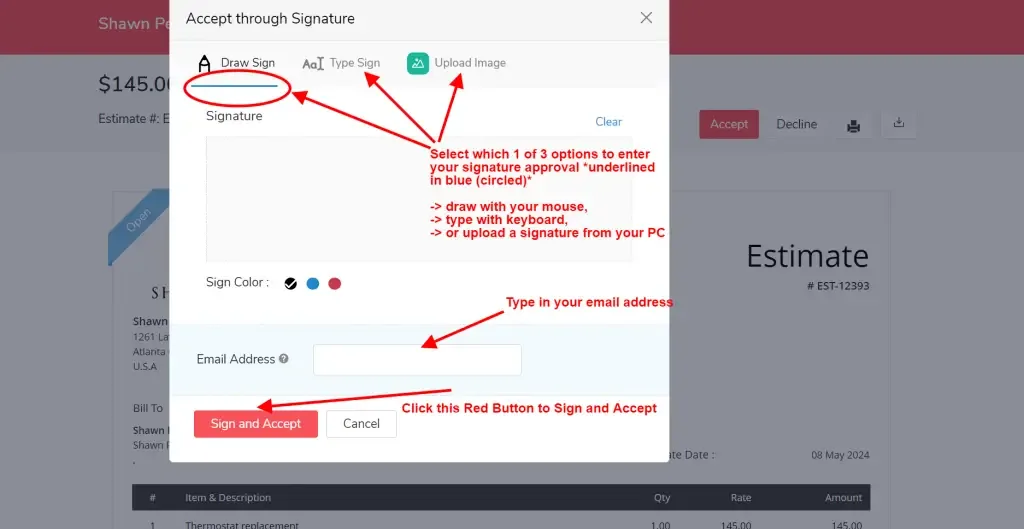
Enter your email address, sign, and click “Sign and Accept”
After selecting Accept, the signature window opens. Choose a signature method, enter your email address, and complete the digital signature. Then click Sign and Accept.
Choose Draw, Type, or Upload for your signature.
Enter the requested email address.
Click Sign and Accept to complete formal quote approval.
Enter your email address, add your digital signature, and select Sign and Accept.
5
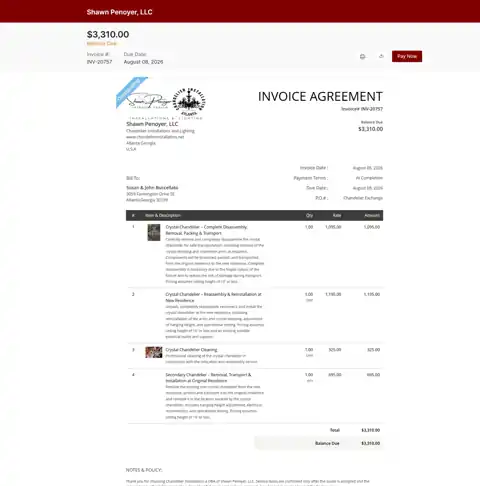
Return to your email inbox and open the new invoice email
After you sign and accept the quote, it is converted into an invoice and a second email is sent to you. Return to your email inbox, find the new invoice message, and select View Invoice / Zoho Payment Options.
This is a new invoice email, separate from the quote email you opened earlier.
Check your spam or junk folder if the invoice email is not visible within a few minutes.
The invoice email shows the approved payment methods and the amount required before scheduling.
Return to your inbox, open the newly generated invoice email, and continue to the payment options.
6
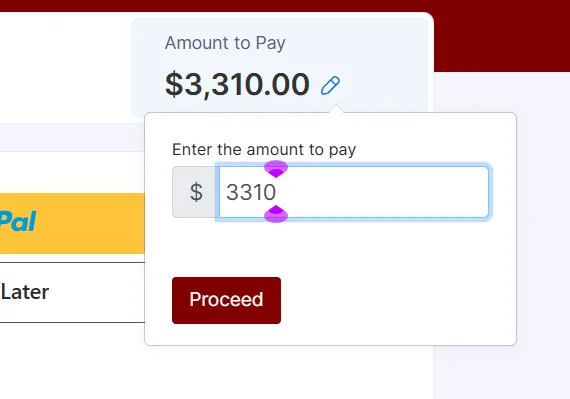
Edit “Amount to Pay” to the required reservation amount
The payment page may initially display the entire outstanding invoice balance. If your approved invoice specifies a smaller reservation payment, click the pencil icon beside Amount to Pay, enter the required reservation amount shown on your invoice or work order, and continue.
Do not guess the reservation amount.
Enter the amount specified in your approved invoice, estimate, or written instructions.
After entering the amount, select Proceed to return to payment selection.
Use the pencil icon to change Amount to Pay to the required reservation amount.
7
Choose one of the approved payment methods shown in the invoice email
Complete the required reservation payment using one of the options provided in your invoice email.
Zelle: use the business identifier displayed in the invoice email.
Venmo: open the Chandelier Installation Atlanta business payment page.
Cash App: use the payment link and account displayed in the invoice email.
Bank account or card: use the secure Melio payment option. Any applicable card-processing fee is shown before payment.
8
Reserve an available appointment
After completing the required reservation payment, continue to the approved-client scheduling page and select an available appointment. Choose the available service date and complete the requested appointment-readiness information.
Use the scheduling page only after your quote has been approved.
Select an available appointment rather than assuming a previously discussed date is being held.
Make sure the fixture is on site and the work area can be made ready before your appointment.
Your service date is secured only after the required payment is received and confirmed
Payment constitutes a non-refundable reservation deposit securing scheduled service time unless otherwise agreed in writing. Approval of a quote alone does not reserve a service date. Service dates are secured only upon receipt and confirmation of the required payment or deposit specified in the quote or invoice. Availability remains subject to change until payment has been received and confirmed.
An unpaid or unfunded appointment may be released without notice. The project must also be ready for service: the fixture must be on site, access must be available, and furniture, artwork, and fragile items must be cleared from the work area before arrival. Rescheduling and cancellation terms shown in your approved documents remain applicable.
Need Help?
Questions about your estimate, reservation payment, or appointment?
If the scope needs to be revised, the reservation amount is unclear, or you have a question before paying or scheduling, contact us before completing the next step.